
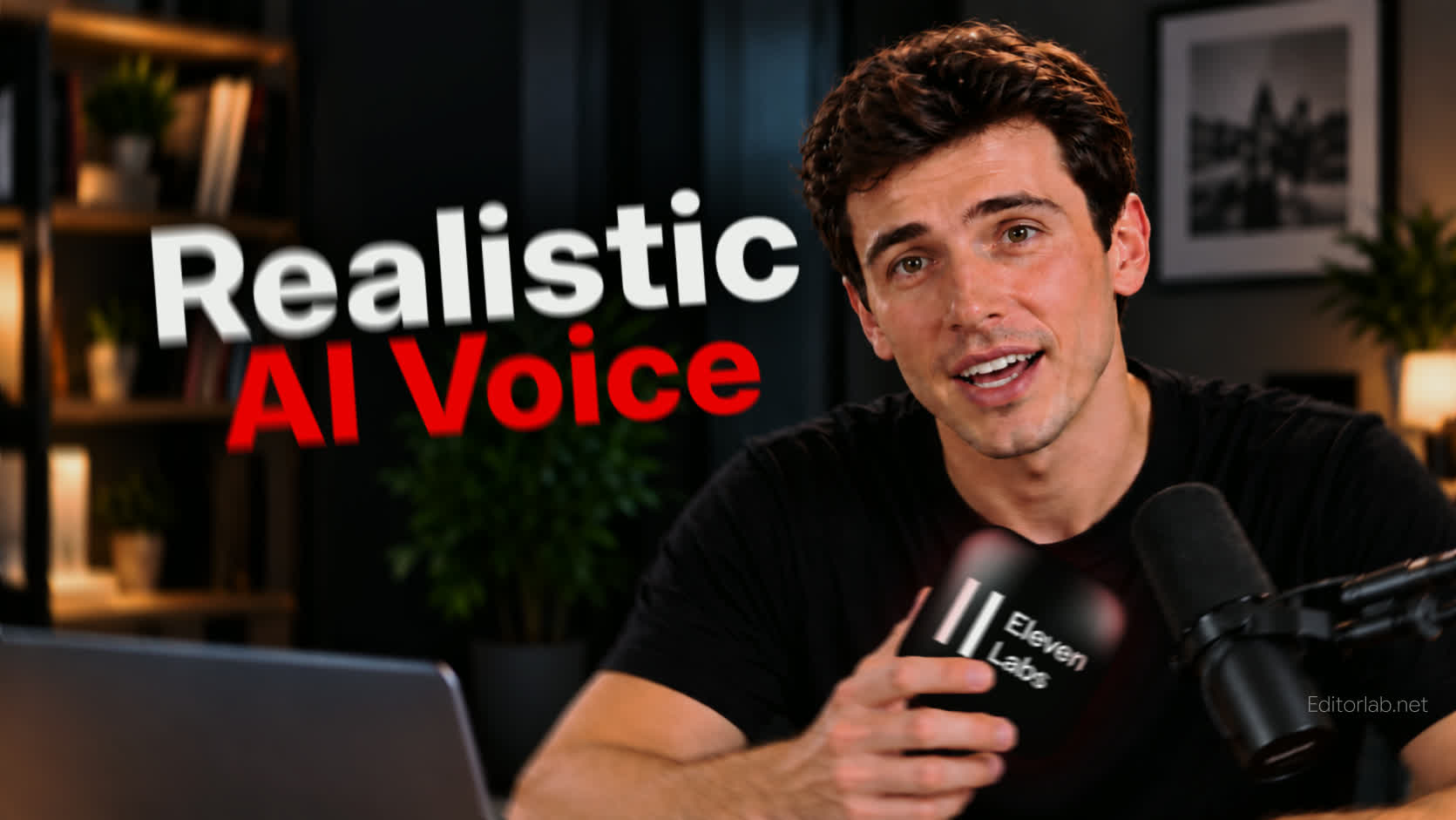
If you’ve ever generated an AI voiceover and thought, “It sounds realistic… but it still sounds like AI,” you’re not alone.
Modern text-to-speech tools can reproduce a convincing human voice, but simply pasting a script and clicking Generate usually isn’t enough. The result can still sound flat, rushed, overly clean, or emotionally disconnected from the content.
A natural AI voice comes from combining good scriptwriting with the right tone, pacing, pauses, emphasis, pronunciation, and voice settings.
In this guide, I’ll use ElevenLabs V3 as the main example and show you how to turn a basic text-to-speech generation into a voiceover that feels much closer to an actual human performance.
1. The Four Elements of a Natural AI Voice
Before changing any settings, it helps to understand what actually makes human speech sound natural.
Tone
Real people don’t speak at the same pitch and energy level throughout an entire sentence.
Our voices naturally rise and fall depending on what we’re saying. We might sound excited during a hook, slow down for an important point, or lower our voice when saying something more serious.
A natural AI voice should do the same.
Pauses
Silence is part of natural speech.
Don’t try to eliminate every gap between words and sentences. A well-placed pause can create anticipation, separate ideas, or give an important statement more weight.
Compare:
The first generation looked good, but then I tried this.
With:
The first generation looked good… but then I tried THIS.
The words are almost identical, but the second version gives the model much more information about how the line should feel.
For short pauses, try dashes or ellipses.
For models and workflows that support explicit break timing, you may also encounter syntax such as:
<break time="0.5s" />
For example:
I was planning to wake up early and conquer my entire to-do list.
<break time="0.5s" />Instead, I stared at the ceiling questioning every life choice I’ve made since 2018.
Emphasis
Not every word deserves the same amount of attention.
Identify the words carrying the main idea and give the model clues that they should be emphasized.
For example:
The first version sounded okay… but the FINAL version sounded WAY more natural.
Natural Scriptwriting
One of the biggest mistakes happens before you even open a text-to-speech tool.
Don’t write like you’re preparing a report.
Write like you’re talking to another person.
Instead of:
There are several important factors that should be considered when generating an artificial intelligence voiceover.
Try:
There are a few things you need to get right if you want your AI voice to actually sound human.
Use contractions. Mix short and long sentences. Add natural transitions. Read the script aloud yourself.
If a sentence feels awkward when you say it, there’s a good chance it will sound awkward when AI says it too.
2. Build Your Voiceover in Short Sections
Don’t paste an entire five-minute script into ElevenLabs and expect one perfect generation.
Break the script into individual sentences or short passages.
For example:
Hook
Still spending hours recording voiceovers for every video?
Setup
AI can make this much faster… but there’s one problem.
Payoff
Most AI voices still SOUND like AI.
Working in smaller sections gives you much more control over the final performance.
If the hook sounds wrong, regenerate the hook instead of regenerating the entire voiceover.
It also makes editing easier later because you can choose the best take for each section.
3. Choose the Right Voice and Model
The model matters, but the voice itself matters just as much.
Eleven V3 is designed for more expressive text-to-speech and gives you additional control through audio tags and contextual prompting.
Go to Elevenlabs V3 (affiliate link): https://try.elevenlabs.io/og0c9mxt0neo
But don’t expect the model to completely transform the personality of an unsuitable voice.
If you’re creating a documentary, start with a voice that naturally sounds controlled and conversational.
For a social media ad, choose something with more energy.
For storytelling, look for a voice capable of natural emotional variation.
Think of the AI voice as an actor.
The closer the actor already is to the performance you need, the less you have to force it.
4. Use Punctuation to Shape the Performance
Punctuation isn’t just grammar when working with text-to-speech. It can influence timing, emphasis, and emotional delivery.
Ellipses (…)
Use ellipses to introduce hesitation, suspense, disappointment, or additional weight.
I thought the first version was good… until I heard the second one.
Dashes (- or —)
Dashes can create a short interruption or shift in rhythm.
Everything looked perfect — until the character started talking.
Exclamation Marks (!)
Use an exclamation mark when a sentence genuinely needs more energy.
And the result is ready!
Don’t put one at the end of every sentence. If everything sounds exciting, nothing sounds important.
Capitalization
Capitalizing individual words can help create emphasis.
This version sounds MUCH more natural.
Use capitalization selectively rather than writing entire sentences in uppercase.
5. Fix Mispronounced Words With IPA
Names, locations, brands, and technical terms are common trouble spots for text-to-speech.
If ElevenLabs repeatedly pronounces a specific word incorrectly, phonetic pronunciation using the International Phonetic Alphabet (IPA) can give you more control.
For example:
Our trip starts in “/ˈwʊstər/”, Massachusetts, before we fly to “/ˈɛdɪnbərə/” in Scotland.
In this example:
- Worcester →
/ˈwʊstər/ - Edinburgh →
/ˈɛdɪnbərə/
When using IPA:
- Use standard International Phonetic Alphabet symbols.
- Include primary (
ˈ) and secondary (ˌ) stress where necessary. - Apply IPA only to words or phrases that actually need pronunciation control.
- Test multiple generations.
- Test with different voices if necessary, since pronunciation behavior can vary between voices.
Don’t convert an entire script into IPA. Use it as a precision tool for problematic words.
6. Control Emotion With Eleven V3 Audio Tags
This is where Eleven V3 becomes particularly useful for expressive voiceovers.
Audio tags can give the model additional context about how a line should be performed, not just what should be said.
Voice and Emotion Tags
Examples include:
[laughs][laughs harder][starts laughing][wheezing][whispers][sighs][exhales][sarcastic][curious][excited][crying][snorts][mischievously]
For example:
[whispers] I probably shouldn’t be telling you this… but this completely changed my workflow.
Sound Effect Tags
V3 can also interpret certain sound-effect directions.
Examples include:
[gunshot][applause][clapping][explosion][swallows][gulps]
For example:
[keyboard typing] I’m entering the prompt now. [mouse click] Generate. [notification sound] And the result is ready.
Experimental Tags
You can also experiment with more unusual directions, such as:
[strong Italian accent][sings]
For example:
[strong Italian accent] You call this editing? My friend, we need more drama!
[sings] Turn your text into speech… and make it sound alive!
Not every tag will work equally well with every voice.
7. Match Audio Tags to the Voice
Audio tags aren’t magic commands. The selected voice and its original training samples strongly influence how well each instruction works.
A calm, meditative voice may struggle to produce a convincing shout.
A highly energetic voice might not produce a believable whisper.
Likewise, a serious professional voice may not respond naturally to playful directions such as [giggles] or [mischievously].
Use tags to direct the existing character of the voice, rather than trying to turn it into a completely different performer.
You can also experiment with ElevenLabs’ automatic enhancement features to add expressive direction to a script, but I still recommend reviewing and adjusting the result manually rather than relying on it completely.
8. Adjust Stability and Other Voice Settings
Stability
In Eleven V3, stability determines how consistent or expressive the generated performance can become.
The main modes can be thought of as:
Creative — More expressive and unpredictable. Useful when you want stronger emotion, but generations may vary more.
Natural — A balanced option that stays relatively close to the original character of the voice.
Robust — Prioritizes consistency and stability, with less responsiveness to dramatic creative direction.
Speed and Style
If the voice feels too slow, experiment with slightly faster delivery.
If it sounds too controlled, allow more stylistic variation.
But don’t assume that faster automatically means better for short-form content.
A rushed AI voice often sounds more artificial, not less.
Start with natural pacing and make small adjustments from there.
9. Generate Multiple Takes
One of the easiest ways to make AI voiceovers sound better is also one of the most overlooked:
Don’t use the first generation automatically.
Generate the same line several times.
Even with identical text, voice, and settings, each generation can produce slightly different:
- Timing
- Emphasis
- Emotion
- Rhythm
- Breathing
- Pronunciation
Treat these generations like takes from a real voice actor.
Maybe Take 2 has the best opening.
Take 4 delivers the middle section better.
Take 6 nails the CTA.
Keep all three.
10. Build the Final Performance in Your Video Editor
Once you have several good takes, bring them into Premiere Pro, DaVinci Resolve, Final Cut Pro, or your preferred editing software.
Then combine the strongest sections.
For example:
Take 2: Hook
Take 4: Explanation
Take 3: Emotional line
Take 6: CTA
You can also manually adjust the space between sentences.
Sometimes adding a few hundred milliseconds of silence between two lines improves the performance more than changing several AI settings.
This is why I treat AI voice generation more like a recording session than a one-click conversion tool.
11. Clean Up the Voice in Post-Production
The final step happens outside the AI tool.
Even a good AI-generated voice can benefit from light audio processing.
A parametric equalizer (EQ) is a good starting point. A high-pass filter can remove unnecessary low-frequency rumble and help the voice sound cleaner.
Depending on the audio, you may also use:
- Light compression
- Subtle EQ
- De-essing
- Volume automation
- Noise cleanup when necessary
Avoid over-processing.
The goal isn’t to radically change the voice. It’s to make it sit naturally in the final video alongside music, dialogue, and sound effects.
Conclusion
Making AI text-to-speech sound human isn’t about finding one perfect setting.
It comes from combining natural scriptwriting, the right voice, intentional punctuation, controlled pauses, accurate pronunciation, emotional direction, multiple takes, and good editing.
Most importantly, don’t treat text-to-speech as a one-click process.
Treat the AI like a voice actor.
Give it a script written for speech. Direct the performance. Generate multiple takes. Keep the best moments. Then finish the voiceover in your editing software.
That’s when text-to-speech starts sounding less like a generated file — and more like an actual performance.
Leave a Reply